
How to explore your market structure and create subsets
The Create subsets page allows you to explore your dataset interactively and, if needed, create different subsets of your markets for analysis.
You can use this step purely for exploration, or to define specific subsets of your data for the analysis later.
When to use this
Use this page when you want to:
Understand how your markets are structured
Explore concentration across different segments
Get an understanding of specific companies, geographies, or product markets
Create alternative “cuts” of your data for analysis
This step is optional. If you do not need subsets, you can proceed directly to analysis once your data is complete.
Explore your market structure
The page is made up of three main areas:
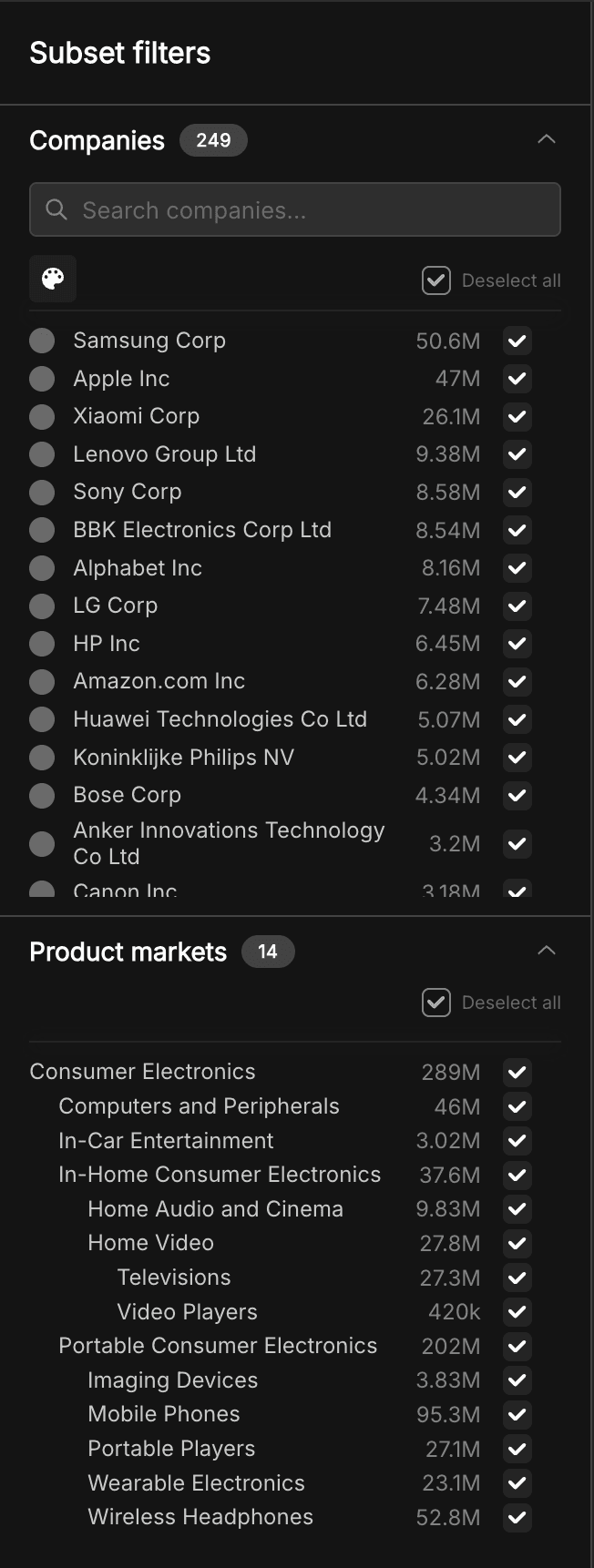
Filters (left sidebar)
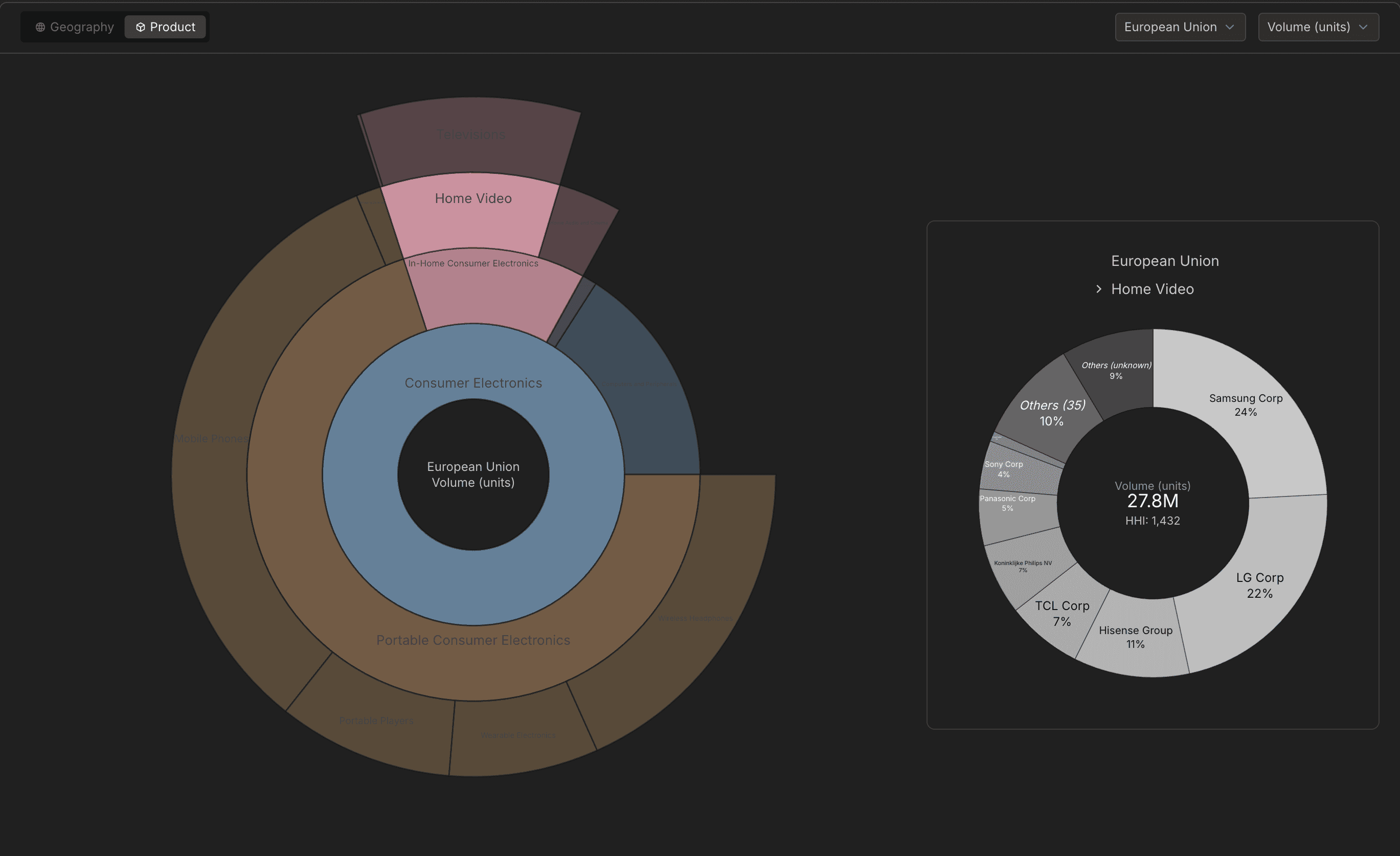
Sunburst chart (main panel)
Market breakdown ( to the right inside the main panel)
1. Use filters to explore your data
On the left sidebar, you will see two sets of filters:
Companies
Product markets or Geographic markets (depending on your view)
You can:
Select or deselect companies
Select or deselect product or geographic markets
As you adjust filters, the chart updates in real time to reflect your selection.
2. Switch between product and geography views
At the top of the main panel, you can toggle between:
Product view
Geography view

This allows you to explore your data from different perspectives:
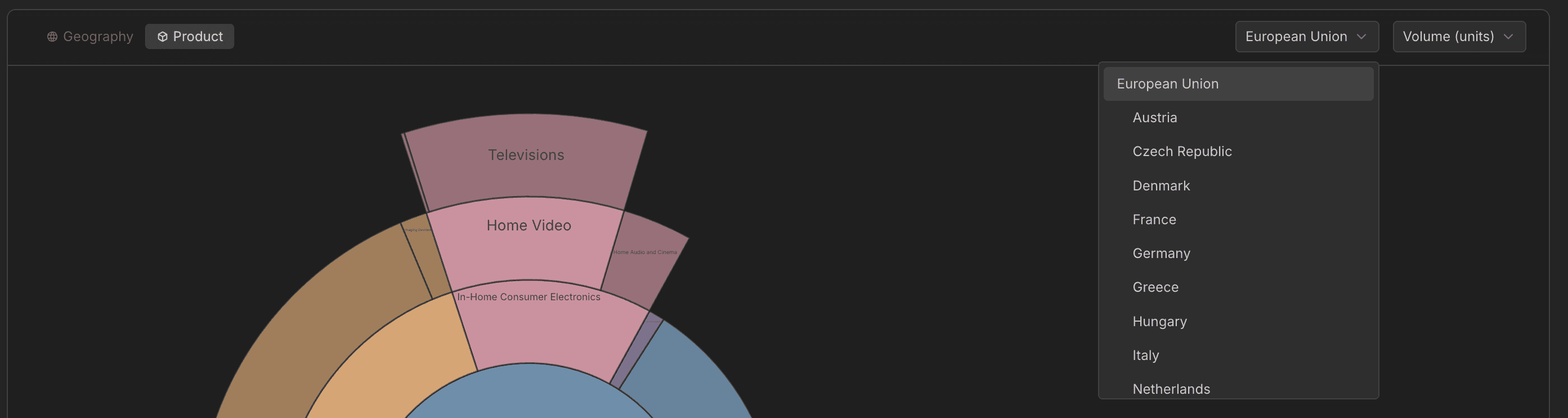
In product view, you can filter down by geography to see how product markets vary across regions
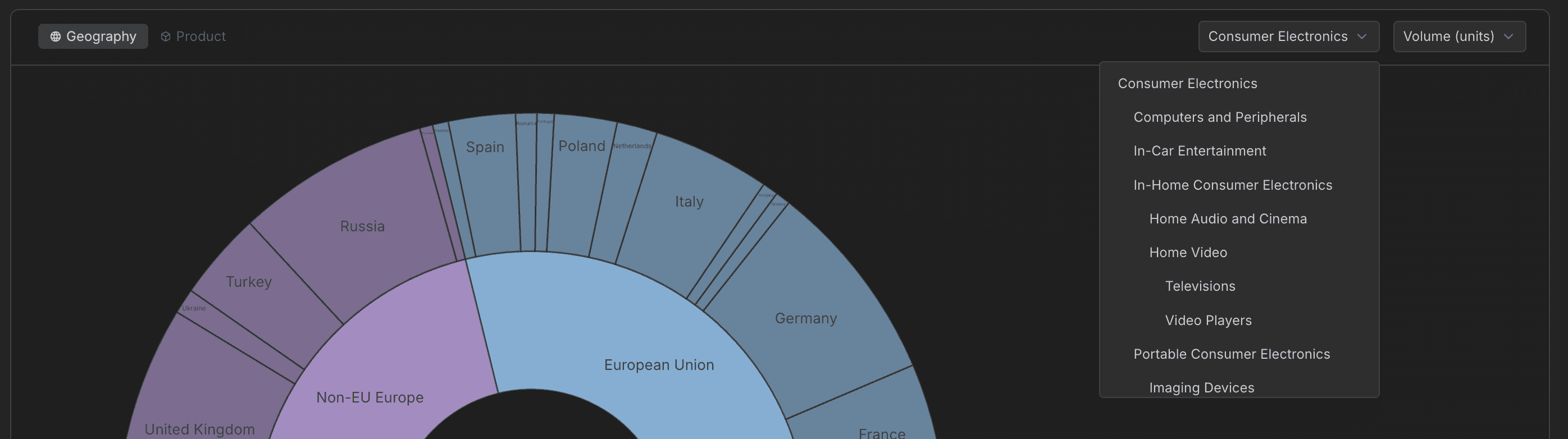
In geography view, you can filter by product to understand geographic distribution
3. Understand the sunburst chart
The main chart visualises your market structure as a hierarchy.
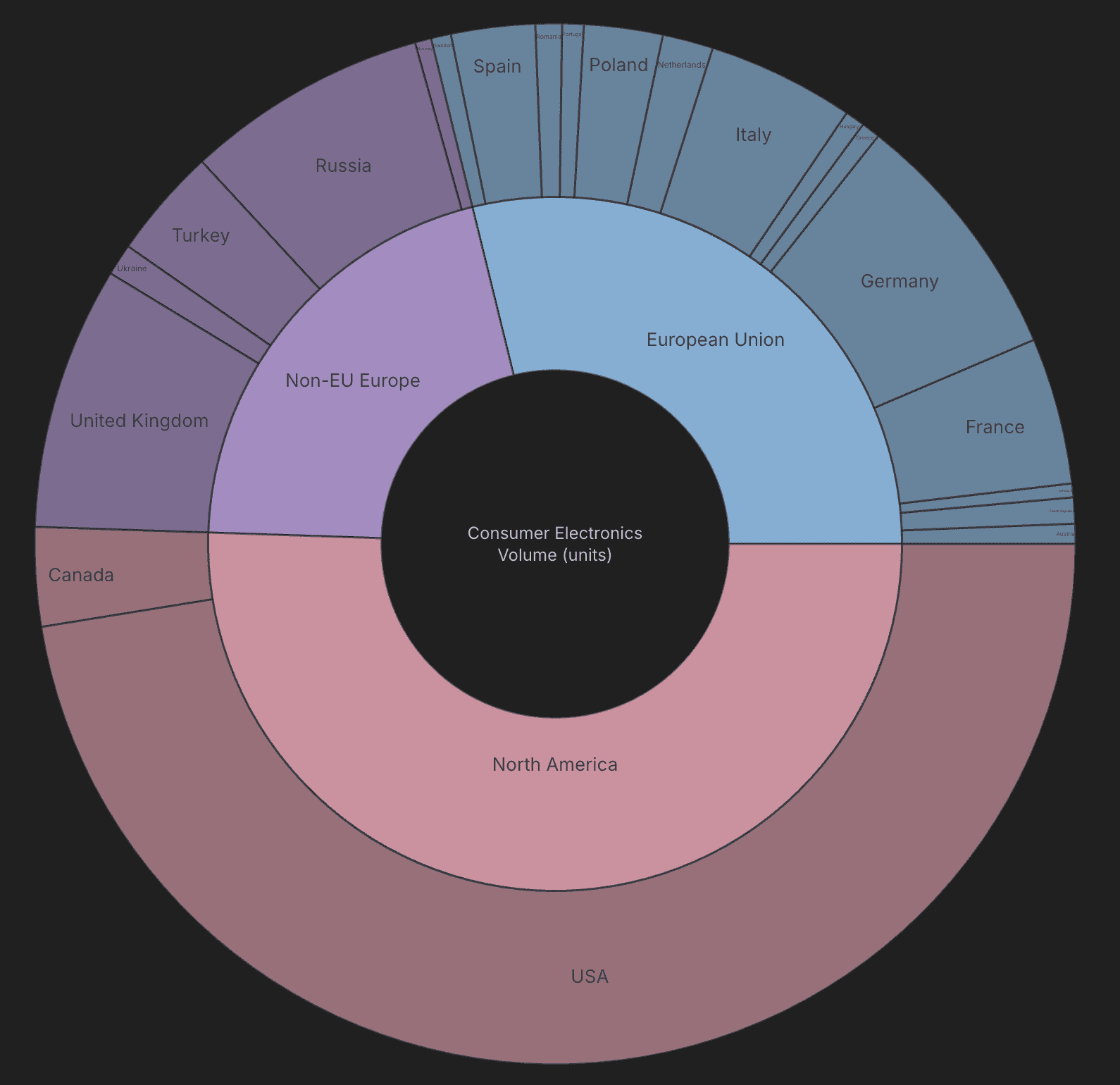
Inner rings represent higher-level markets
Outer rings represent more detailed segments
Hover over any segment to see:
Market size (e.g. volume or revenue)
Share within its parent category
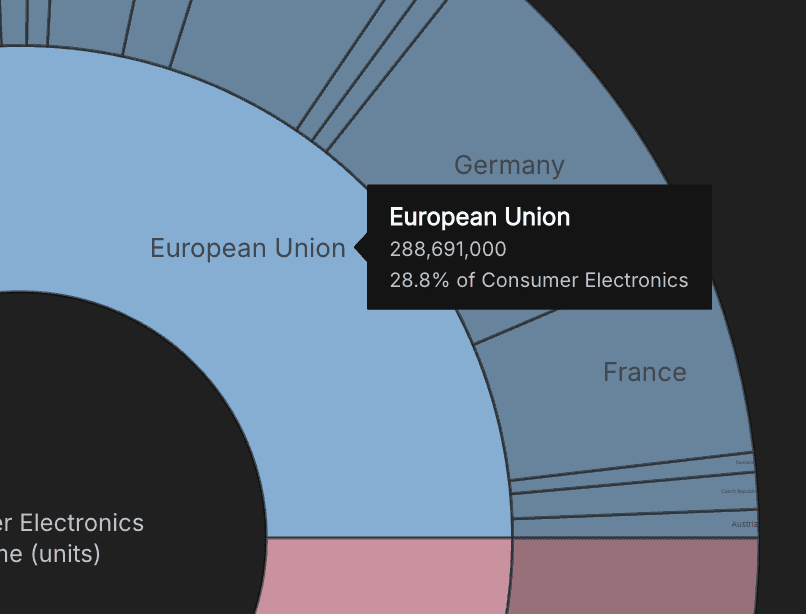
4. Drill into specific markets
You can click on any segment in the sunburst to explore it further.
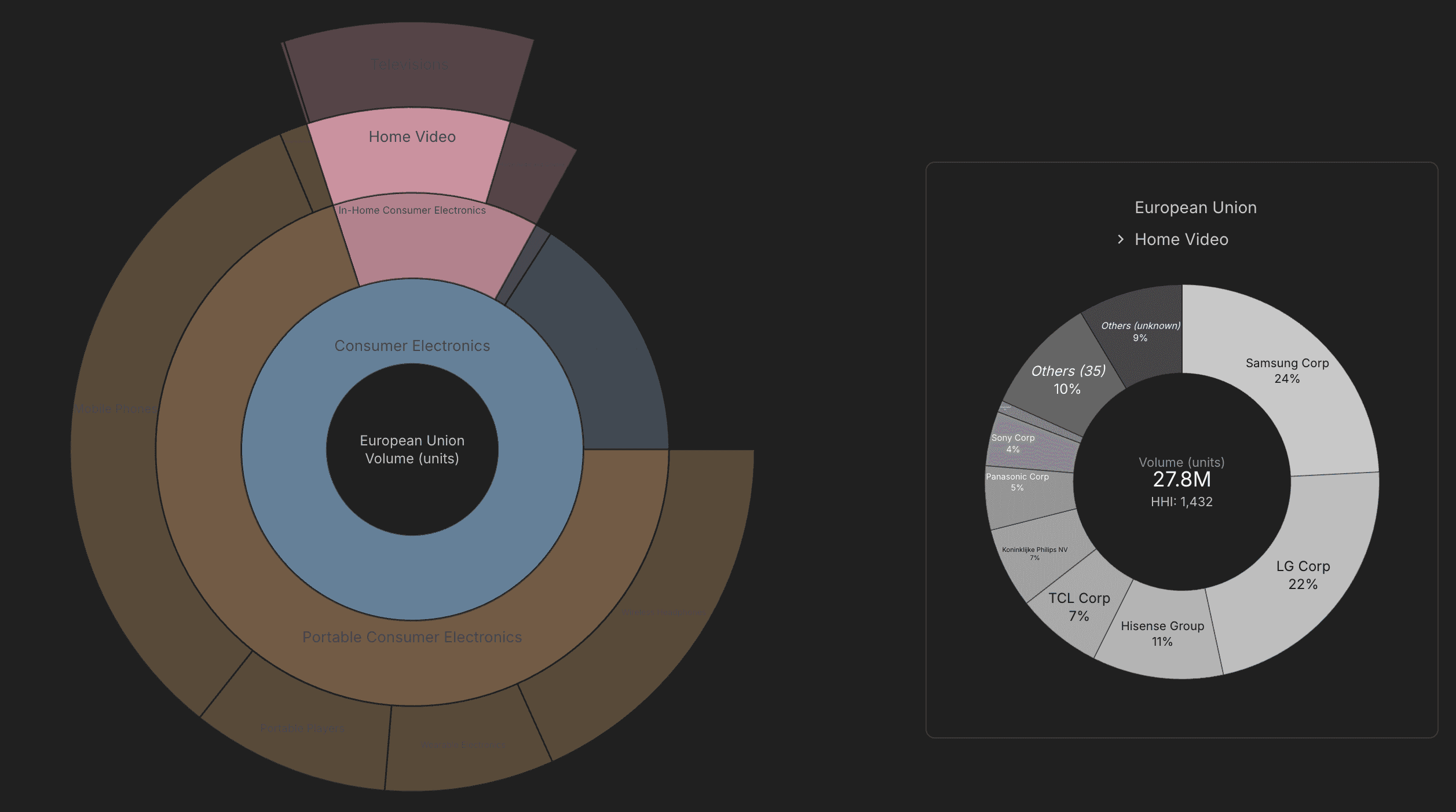
When selected:
A detailed company breakdown appears on the right
The companies filter highlights only those present in that market
This helps you quickly understand:
Who the key players are
How concentrated that specific market is
Click the segment again to deselect.
Create subsets
Subsets allow you to save filtered versions of your dataset for analysis.
Default subset
By default, your dataset includes:
All companies
All geographic markets
All product markets
Create a new subset
To create a subset:
Apply filters using the sidebar
Adjust companies, product markets, or geographies as needed
Save the selection as a new subset
This is useful when you want to analyse:
A specific region
A product segment
A reduced set of competitors
Update or reset filters
Use the undo icon to reset all filters back to default

Update an existing subset by applying new filters and click on Update subset next to the subset name

Access saved subsets
Saved subsets can be accessed via the folder icon next to the subset name.

This allows you to quickly switch between different subsets of your data.
Download your dataset
You also have the option to download the dataset from this page.
What to do next
If you have created subsets, you can use them in the analysis step
If not, simply proceed with the default dataset
Once you are ready, move to Analyse markets to run your analysis.
Sign up to our newsletter